Hardware
Checklist
Section titled “Checklist”Laptop hardware setup checklist
This is a condensed checklist if you already know what everything does. For more info on each, read on below
Laptop
Display
Audio
Misc.
Placement
Section titled “Placement”Laptop should be placed on the desk with the computer
Laptop & Charger
Section titled “Laptop & Charger”Simply put the laptop on the table, and then connect the charger to a power socket. We typically connect it to the power extension just under the table.
You can also turn it on at this point. The password is written down in a sticky note on the laptop.
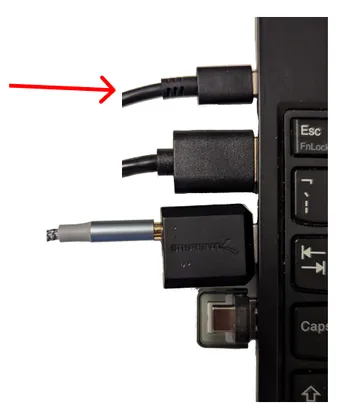
Display (HDMI)
Section titled “Display (HDMI)”Connect the HDMI cable from the laptop into the socket on the table. The socket is on the left side of the table.
After you connect to it, you’ll want to press the HDMI button on the display. This will change the mode on the screen to show whatever is on our laptop.
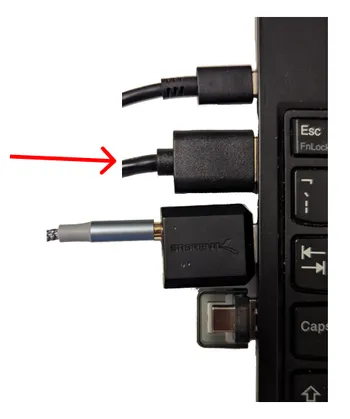
USB Audio Adapter
Section titled “USB Audio Adapter”The USB Audio adapter is responsible for getting audio from the Mixer to our laptop. This is so that we can record the teaching.
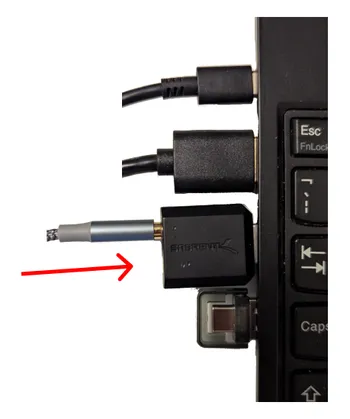
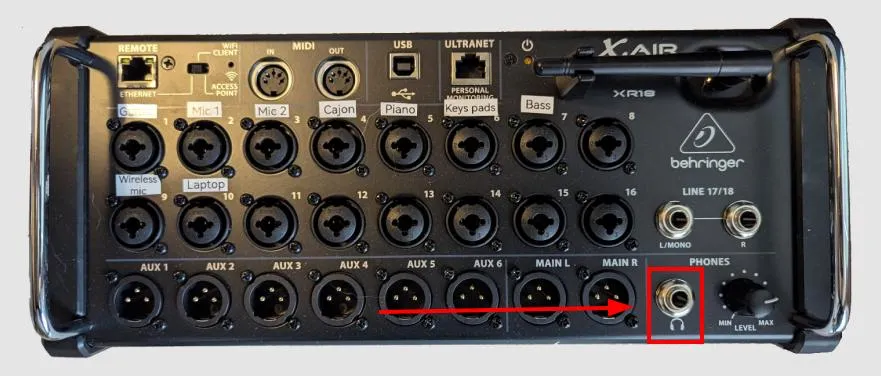
The cable for recording should have a label saying “Phones”. And it should be connected to the Mixer on the hole with Headphone symbol.
Storage
You can find this in the Audio bag, in the main compartment
Bluetooth Audio
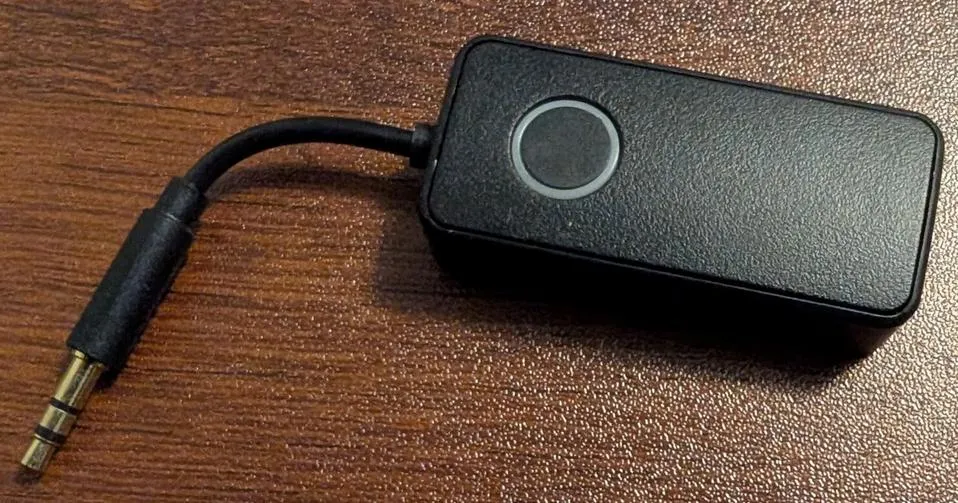
Section titled “Bluetooth Audio”We use a Bluetooth Audio dongle to play sound from the Laptop to the Mixer.
Simply connect it to the Mixer on the hole with the “Laptop” label.
And then turn it on by holding the power button until the light turns on.
The device is battery powered, but we’ll want to connect it to a USB port to always keep it at 100%. We can connect this to the Audio Recorder.
Storage
You can find this in the Audio bag, in its back pocket area
Slide Remote Controller
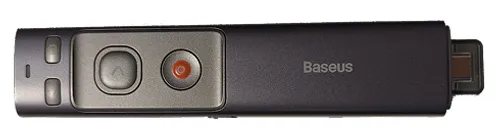
Section titled “Slide Remote Controller”This is used by the chairperson and preacher to control the slides.
We simply need to:
- Take out the USB on the bottom and plug it into the laptop
- Power it on - The switch is on the left side
- Place the remote on the music stand in the middle
Ethernet
Section titled “Ethernet”For this, we simply need to connect the ethernet cable from the Router into the Laptop
Step-by-Step
Section titled “Step-by-Step”-
Take laptop out & put on table
- In the laptop bag, main compartment
-
Charge laptop
- In the laptop bag, main compartment (sometimes the secondary compartment)
-
Turn laptop on
- Password is written on the laptop
-
Connect HDMI cable from laptop to socket
- Cable is often stored in secondary compartment
- The venue also often supplies one, ours is the short one
-
Press HDMI output on the socket display
- The display is the one just above the socket. It’s touchscreen
-
Connect USB Audio adapter from laptop to Phones hole on Mixer
- Adapter can be found in the Audio bag
- On the Mixer, it will have the headphones symbol
-
Connect Bluetooth audio dongle to “Laptop” hole on Mixer, turn it on
- Dongle can be found in the Audio bag, in the back pocket
- Hold for a few seconds to turn it on
-
Connect Bluetooth audio to charger
- Connect via USB on the cable connected to the Audio Recorder.
-
Plug Slide remote USB to laptop
- The remote can be found in the front most compartment of the laptop bag
- The USB is at the bottom of the remote
-
Turn it on & put on music stand
- Switch is on the remote’s left side
- Place it on the music stand so that the chairperson & preacher can get it
-
Connect Ethernet cable from Router to Laptop
- Simply plug it. Ethernet cable should be setup from the Core Infrastructure section