Keyboard
Checklist
Section titled “Checklist”Keyboard setup checklist
This is a condensed checklist if you already know what everything does. For more info on each, read on below
Keyboard
iPad
Misc.
Placement
Section titled “Placement”The keyboard should be on the left side of the stage, next to the speaker

How everything connects together
Section titled “How everything connects together”The setup might seem complicated, but that’s because there’s a few parts to this:
- The iPad for Sunday Sounds
- Charger to charge iPad
- Audio out cable to mixer
- Sustain pedal
To setup Sunday sounds, we just need the ipad connected to the keyboard.
Section titled “To setup Sunday sounds, we just need the ipad connected to the keyboard.”Here, we use a usb-c hub because we’ll use that later:
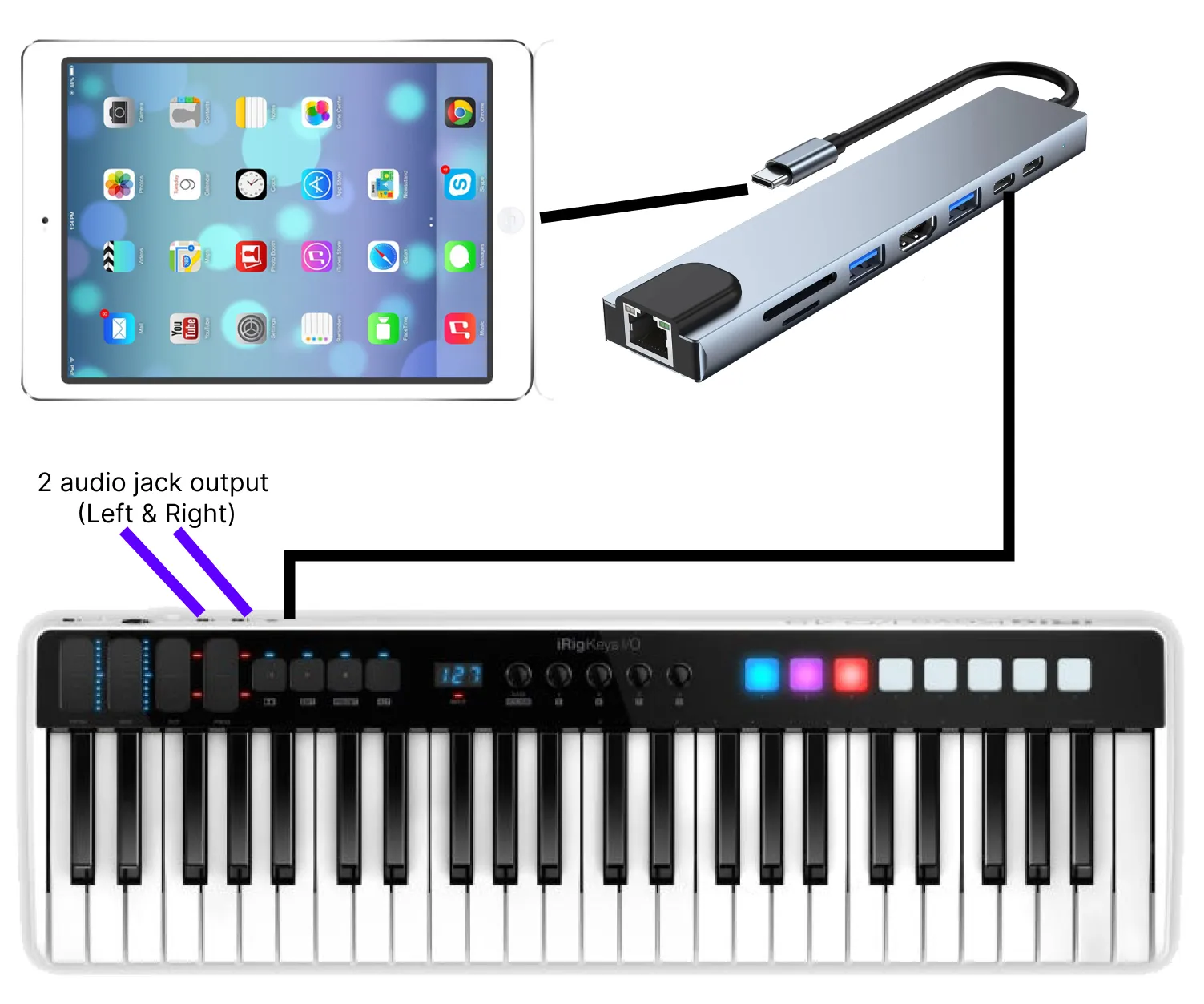
It’s as simple as that. As long as the app is open, it should output sound. Although it can be a bit buggy. A simple app restart often resolves the problem.
So what are the other cables for?
A. Charge the ipad
Section titled “A. Charge the ipad”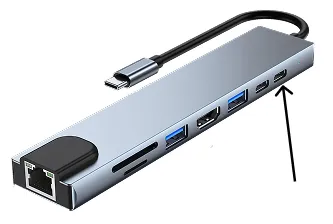
Connect charger into the other usb-c hub to power charge the iPad.
It will work without it since the keyboard will use the battery from the iPad.
But we wouldn’t want it to power off in the middle of service.
B. Misc.
Section titled “B. Misc.”The reset is self-explanatory. Audio cable directly to mixer for the sound itself.
And sustain pedal for sustain.
Step-by-Step
Section titled “Step-by-Step”-
Setup keyboard stand & put keyboard on it
- The shorter part of the stand should be at the top
- To change the height of the stand, pull on the pin, don’t turn it
-
Plug in sustain pedal
- The hole is on the very left of the keyboard
-
Setup music sheet stand
- This stand is in a separate bag inside the keyboard bag. It’s foldable.
-
Put iPad on music sheet stand, plug into USB hub
- USB hub should connect directly to iPad
-
Connect keyboard cable from USB hub to keyboard
- Make sure to align the hole on the keyboard. The rotation matters
- The hole is labeled “Device”
-
Connect charger to USB hub
- This connects to the power extension
- In the USB hub, this should be the hole at the very end
-
Connect left & right audio jack cable to mixer
- Left goes to “Piano” on the mixer
- Right goes to “Keys pads” on the mixer
Phew, that’s it for all the connections!
Software Setup
Section titled “Software Setup”Now, let’s make sure everything is working. If there’s no volume coming out, and the mixer is setup properly, here’s the steps to check what’s going on
1. Sunday sounds
Section titled “1. Sunday sounds”- Make sure app is open
- When you press a note, the app should say it’s outputing sound
Check by looking at this bar. If it’s like below, it’s working. If no green, no sound.
In that case, restart the app or re-plug the cable

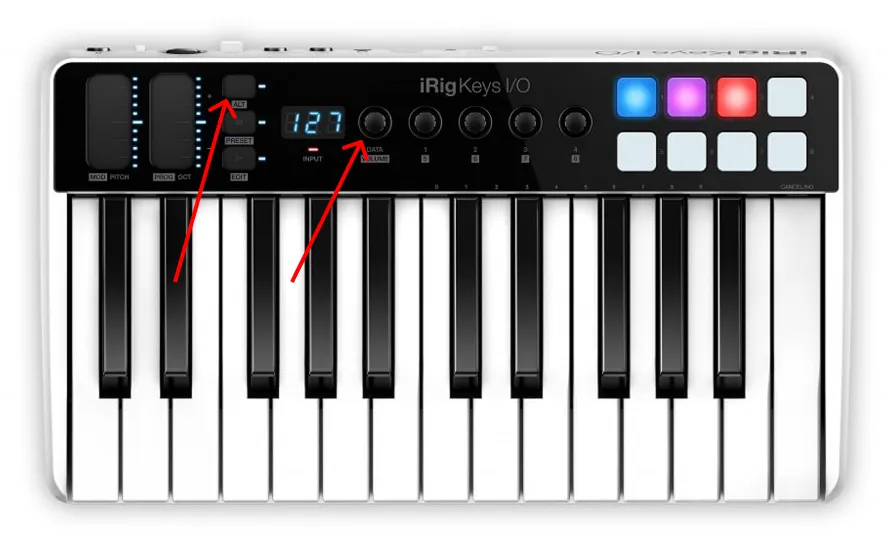
2. Keyboard volume
Section titled “2. Keyboard volume”- Make sure keyboard master volume is set
- Press ALT. Now if you turn the Data/Volume knob, it should set the master volume
- Set around 80-90. The number should appear on the screen
3. Check audio out connections
Section titled “3. Check audio out connections”If still no sound, check the connections. Otherwise, the problem might be in the mixer.